


Intro to System Backup via Drive Imaging & Disk Cloning
Cloning programs offer the ultimate form of back-up protection .. should your hard drive fail (die) or your system become otherwise unusable. You can think of a cloning program as a digital insurance policy. By paying a relatively small premium up front, you're provided with comprehensive coverage should disaster strike down the road.
Yet unlike a conventional insurance policiy (which will co$t you) the protection afforded by a Cloning program can be had for FREE. [See footnote.01.]
So nobody should be operating their computer without the disaster-recovery protection provided by a backup image (.. created with a reliable Cloning program).
NOTE » This guide remains a work-in-progress. Last updated » January 12, 2012. Should be done in another month or two. (Or three.)
These guides always seem to take longer than I expect.
RATIONALE OF BACKING UP WITH A CLONING PROGRAM:
You cannot prevent your hard drive from dying. It's a statistical fact that a certain percentage will fail. And more than you think. So it makes sense to prepare for the possibility, especially if a drive- or system-failure will have a detrimental effect on your daily computing .. which it almost certainly will, if you do more than just surf the web from time to time.
INTENDED AUDIENCE » This guide is designed for those who are NEW to drive imaging. If you're unfamiliar with how a Cloning program works, it would be well-worth your while (I promise) to familiarize yourself with the benefits provided by this cool, life-saving technology.
 CAVEAT » Like a conventional insurance policy, cloning programs also require you to pay up front. You pay-up front by creating a back-up image while your computer is running fine.
A back-up image is simply a large, compressed file that contains the contents of your entire system drive. The more stuff you have stored on your system drive (where your operating system resides) the larger will be your backup-image file, and the longer it will take to create the backup image.
I'm talking about things like your digital photos, installed programs, your mp3's, and especially video files, which consume large chunks of real-estate on your hard drive.
If you have no 'policy' (no backup image) when disaster strikes, you're S-O-L. (Sadly outta luck.)
That's because you can't purchase a policy retroactively .. the day after disaster strikes. Insurance companies don't work that way, and neither do cloning programs.
BUT! » If something *does* go wrong .. with your drive or system .. while you are prepared (which is what this guide is all about) you'll be able to restore your system .. in a matter of minutes. Sound rad? It is! So let's get crackin'.
EXPERTISE » Here at Radified, we have — for many years now — specialized in using Cloning programs to back-up our system-drives (where Windows resides, normally your C-drive) .. by creating an image-file of your system partition .. and storing this image on a physically-separate drive .. normally an external hard drive (for those with laptops), or a second internal drive (for those with desktop PCs). Drive imaging .. it's what we do here.
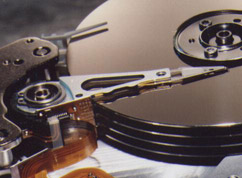 BACKGROUND » the site became surprisingly popular after a similar guide was posted (back in 2001) on how to use Norton Ghost, one of the most popular disk-imaging & cloning applications. Back then, Ghost was DOS-based, and not very easy to use.
TODAY » our members have experience with a variety of Cloning programs. As a result, we've gained insight into the pro's & con's of the different programs currently available. (Of which there are many.) Along the way, we've provided support for thousands of users who've come seeking answers to their problems.
BEST PRACTICES » Over the years we've developed insight into the techniques that represent a Best Practices approach to hard drive-imaging .. since all Cloning programs employ the same basic principles.
FOR EXAMPLE » One such technique (which we'll discuss later in more detail), is the practice of storing your backup images on media — such as DVD or another hard drive — that is physically separate from the place where the image was created (« usually termed "the source").
In other words, you should be able to remove your 'source drive' from your system, smash it with a sledge hammer, and still be able to restore your system to a new hard drive, using a backup image stored somewhere else. Get it?
This is because .. if you store your backup-image on the same physical drive (as many n00bies do), and that drive dies, you won't be able to use that image to restore your system .. since everything stored on the dead drive (all your data & files) will be lost. Forever.
Power = Danger | Overwriting Partitions & Disks
Before we go any further, you should be aware that cloning programs come with inherent danger. The thing that makes them so powerful (» the ability to overwrite a partition, or your entire hard drive) is the same thing that makes them dangerous. (Think nuclear weapons » Power = Danger.)
An errant click by a clueless n00bie can wipe out an entire hard drive. So you need to know what you're doing. Understanding how Cloning programs work will prevent you from making such mistakes, or at least make them far less likely.
THE BACKUP LESSON » Most people (myself included) learn "the backup lesson" the hard way. It's a particularly painful lesson to learn. "A wise man," it has been said, "learns from the mistakes of others." Be wise & learn from our mistakes. A little backup savvy can save you much grief.
FOOTNOTE.01 » Most Cloning programs are not free. The better ones (such as those listed in the red column to your right) tend to cost between US$40 and $70 dollars, tho sales exist from time to time. Some programs however, such as Clonezilla are free (and open source).
The difference between free & commercial Cloning products? Primarily » ease-of-use .. via an intuitive interface. Also, many of the commercial cloning programs come with high-end features .. that you'll probably never use. And of course » professional support.
Are commercial Cloning programs worth the cost? Most definitely! My point » cost is not a barrier, should you lack the funds .. which is not uncommon these days, seeing how badly the economy suketh.
On the NEXT page, we'll look more closely at the question » "Why should I backup my system drive with a cloning program?" See below for linkage.